

Empirical (Experimental) Performance Analysis
Chapter 18
Learning Outcomes
After completing this lecture and the related lab, students will be able to:
Set up and run empirical performance experiments, including instrumentation (timing), varying input size, and collecting performance data.
Visualize and interpret timing data (e.g. by plotting runtime vs. input size, comparing multiple algorithms via graphs, and recognizing anomalies).
Combine analytical and empirical results to make informed decisions about algorithm or implementation choices, recognizing limitations of each method (e.g. machine, implementation, data-specific effects).
Lecture Video
Introduction
While analytical performance measures are important, an empirical approach is also insightful.
The naive way to take timings:
Record the start time.
Run section of code you wish to time.
Record the end time.
Your answer is (end – start).
While there are numerous issues with this approach, it will give sufficient approximate timings for this class.
Example Code
#include <iostream> // To display information
#include <chrono>   // Required for taking timings

/**
 * Example function that will measure the time to run an algorithm over a
 * range of sizes.
 * @param Constants describing the range of sizes with which we
 *        will test the algorithm.
 */
void checkTime(const unsigned int MIN_N = 10000,
	const unsigned int MAX_N = 10000000,
	const unsigned int CHANGE_IN_N = 10000);


void checkTime(const unsigned int MIN_N,
	const unsigned int MAX_N,
	const unsigned int CHANGE_IN_N)
{
	using namespace std::chrono;
	using clock = std::chrono::steady_clock; // type alias to easily change clock types

	// We want to run our algorithm over varying sizes.
	for (unsigned int size = MIN_N; size <= MAX_N; size += CHANGE_IN_N)
	{
		// Capture the start clock (stored as clock_t)
		const auto START_TIME = clock::now();

		// To Do: This is where your algorithm should be called.
		// Note: size is the SIZE or the input; you may have to change it.
		// functionCallToYouAlgorithm(size);

		// Capture the clock and subtract the start to get the total time elapsed.
		const std::chrono::duration<double> ELAPSED = clock::now() - START_TIME;

		// Convert into seconds as a floating point number.
		const auto TIME_IN_SECS = ELAPSED.count();

		// Print out first the size (size) and then the elapsed time.
		std::cout << size << '\t' << TIME_IN_SECS << '\n';
	}
}Example Output
First is the size (1000) and second is the number of seconds (pretty small).
1000	1.711e-06
2000	3.139e-06
3000	4.802e-06
4000	6.423e-06
5000	7.835e-06
6000	9.637e-06
7000	1.0264e-05
8000	1.1698e-05
9000	1.4457e-05
10000	1.5668e-05
11000	1.6472e-05
12000	1.9292e-05
13000	2.0971e-05
14000	1.857e-05
15000	2.124e-05
16000	2.5269e-05
17000	2.4437e-05
18000	2.6614e-05
19000	2.5403e-05
20000 3.0695e-05Crash Course in gnuplot
gnuplot is an interactive plotting program.
To install, type:
shellsudo apt update && sudo apt install gnuplot -yTo run, type:
gnuplot
Basic Example
Try typing the following commands:
Open gnuplot:
gnuplotDisplay a sin wave:
plot sin(x) with line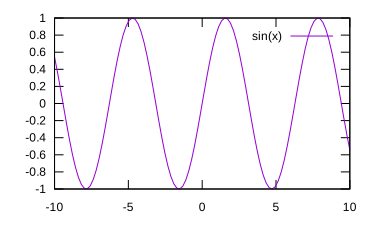
gnuplot of sin(x) Change from a line to points:
plot sin(x) with point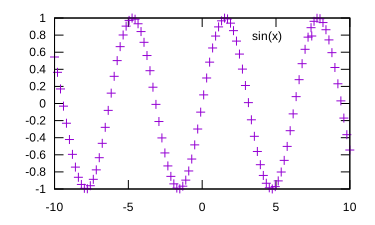
gnuplot of sin(x) with points
Add Labels to the Plot
Type the following to label your plot.
set title "Sin Wave"           # Add a title to the top.
set ylabel "Amplitude"         # Label the y axis.
set xlabel "Time (in Seconds)" # Label the x axis.
replot                         # Show these changes.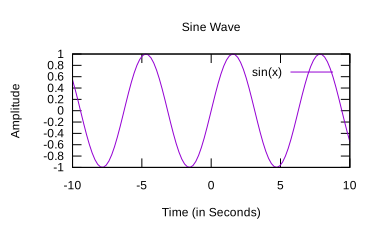
Save a Plot to File
To output the plot to a PDF instead of the screen:
set terminal pdf color
set output "nameofplot.pdf"Then type the commands to plot your data.
To save an already-created plot, add
replotorrepto re-plot it in the new output (PDF) device.The data will be written when you exit gnuplot.
exit
To save the current plot to a file.
save "plotname.pdf"Opening PDF files in VSCodium
For convince, I recommend installing a PDF viewer extension to VSCodium like vscode-pdf.
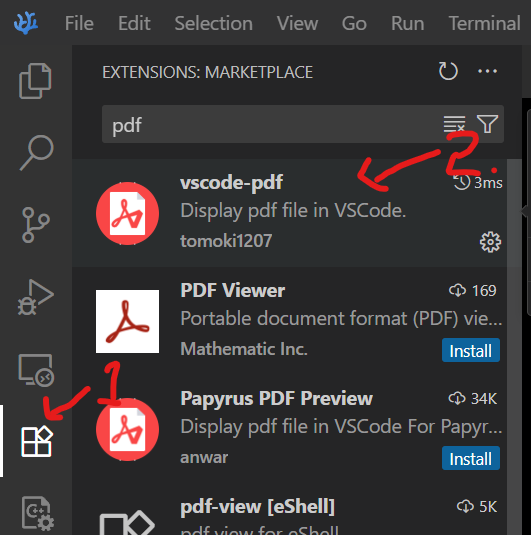
The following examples assume you can open PDFs in VSCodium.
Huge Time Saver!
gnuplot commands can be saved to a script file and automatically used.
Create a file named simple.plot containing the following:
set terminal pdf color set output "simple.pdf" set ylabel "Time (seconds)" set xlabel "Size" # Add additional commands to create the plot...Run your script and display the PDF:
gnuplot simple.plot && codium simple.pdf
Automate with Makefile
Using a gnuplot script is especially useful if you put it in a makefile!
plot:
  gnuplot simple.plot # Run gnuplot script
codium simple.pdf # Open the PDF is Visual Studio CodeNow, make plot generates the plot and displays it!
We will improve on this in the version below.
Plotting Timings
Assume we have the full listing of performance
data in a file namedsingle-timings.data.With gnuplot, we can simply graph the timings:
plot "single-timings.data" using 1:2 with line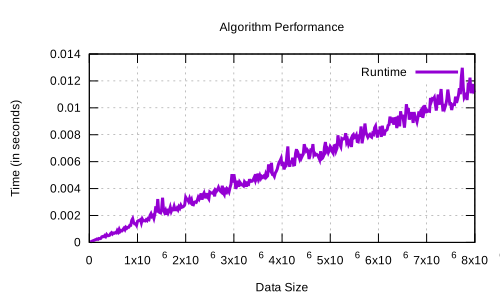
Plotting Timing Data shellset terminal pdf color set output "single-timings.data" # Name the output file set title "Algorithm Performance" set ylabel "Time (in seconds)" set xlabel "Data Size" set grid # Show grid lines # Make line thicker with lw 3 # Change the line's title with title "Runtime" plot "single-timings.data" using 1:2 with line lw 3 title "Runtime"
Automate Testings with a Makefile
.PHONY: plot
all: data.pdf

main: timing-example.cpp
  g++ -Wall -Wextra timing-example.cpp -o main

data.out: main
  ./main > data.out

data.pdf: data.out data.plot
  gnuplot data.plot
  codium data.pdf # Open PDF in VSCodium (extension required)

plot: data.pdfPlotting Multiple Lines from Multiple Files
Let us assume we have two files (in the same format), each with timing data for a different algorithm.
With gnuplot, we can graph both timings:
plot "sumOfOneTo.data" using 1:2 with line, \
  "intersectionCount.data" using 1:2 with line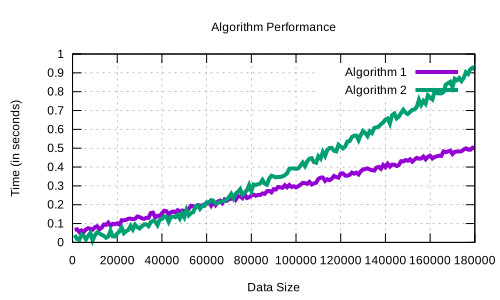
Plotting Multiple Lines on One Graph You can append more and more data files in this manner.
Common Gotcha
You only see one of the two algorithms you plotted!
plot "linear1.data" using 1:2 with line lw 4 title "Linear Algorithm",\
  "quad2.data" using 1:2 with line lw 4 title "Quadratic Algorithm"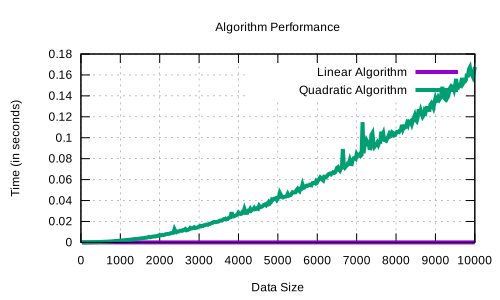
Check your data and axis. Often it is too small to see.
# Manually set the upper limit of the y-axis to 2
plot [:][:0.0001] \
  "linear1.data" using 1:2 with line lw 4 title "Linear Algorithm",\
  "quad2.data" using 1:2 with line lw 4 title "Quadratic Algorithm"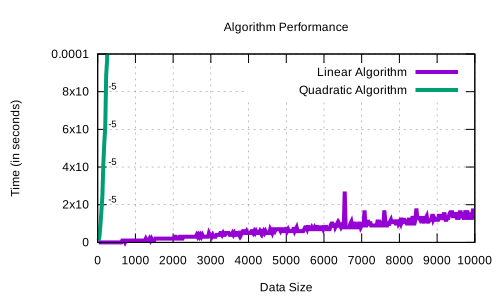
Summary
In review, we can:
Analyze an algorithm analytically to predict performance.
Profile programs to find what piece of code is the bottleneck.
Output & plot timings to see actual performance.
We can spend many hours on performance analysis.
We stick with the basics for this class.
Performance Tips
Optimize the correct functions and look for the correct improvements.
From our example, pref gives the following:

Most of the time is spent in
sumOfOneTo(); improvingsumOfOneTo()’s performance may help.Optimizing
sumOfOneToSquared()will not help as much.- Maybe we can memoize past results to use in the future
or use a better data structure.
- Maybe we can memoize past results to use in the future
Conclusion
We are scratching the surface.
Important outcomes. You should be able to:
Analytically deduce the performance of code.
Profile code to find the hot spots.
Empirically run programs to evaluate performance.
Understand that some anomalies will not be addressed in this course.
Lab 7: Performance Analysis
Let’s take a look at Lab 7.